
Setting Default Discounts
Save a standard discount per product or SKU so new promotions are pre-filled for you.
Default discounts let you save the discount you usually give for each product or SKU. When you create a new promotion, VaultN fills in these discounts for you, so you don't have to enter the same values on every SKU, every time. This helps most if you have a large catalog.
The pre-filled discount is only a starting point. You can always change it on the promotion.
Before you start
- You need a publisher account in the VaultN Portal with permission to manage promotions.
- Your products and SKUs must already be in your catalog.
Where to find default discounts
- Go to Distribution → Promotions.
- Click the Default Discounts tab. It sits next to Promotions and Promotion Requests.
The page lists your products. Click the arrow next to a product to see its SKUs.
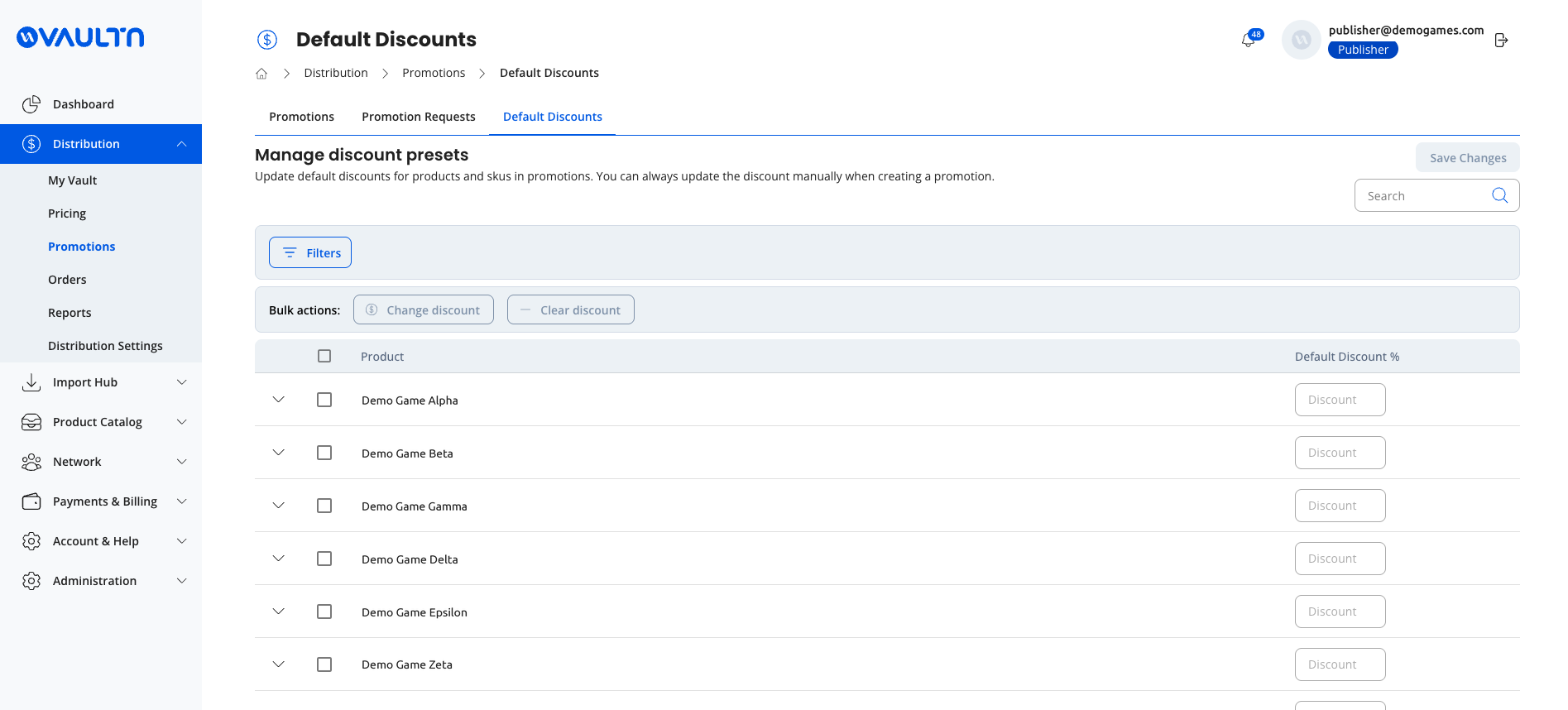
Set your default discounts
- Find your products. Use Search to find a product or SKU by name, or click Filters to filter by platform or region.
- Enter a discount. Use one of these options:
- Per SKU: expand a product and enter a discount % in each SKU's Default Discount % field.
- Per product: enter a discount % on the product row. VaultN applies it to all SKUs of that product.
- Several rows at once: select the checkboxes for the rows you want, then click Change discount under Bulk actions.
- Save your changes. Click Save Changes.
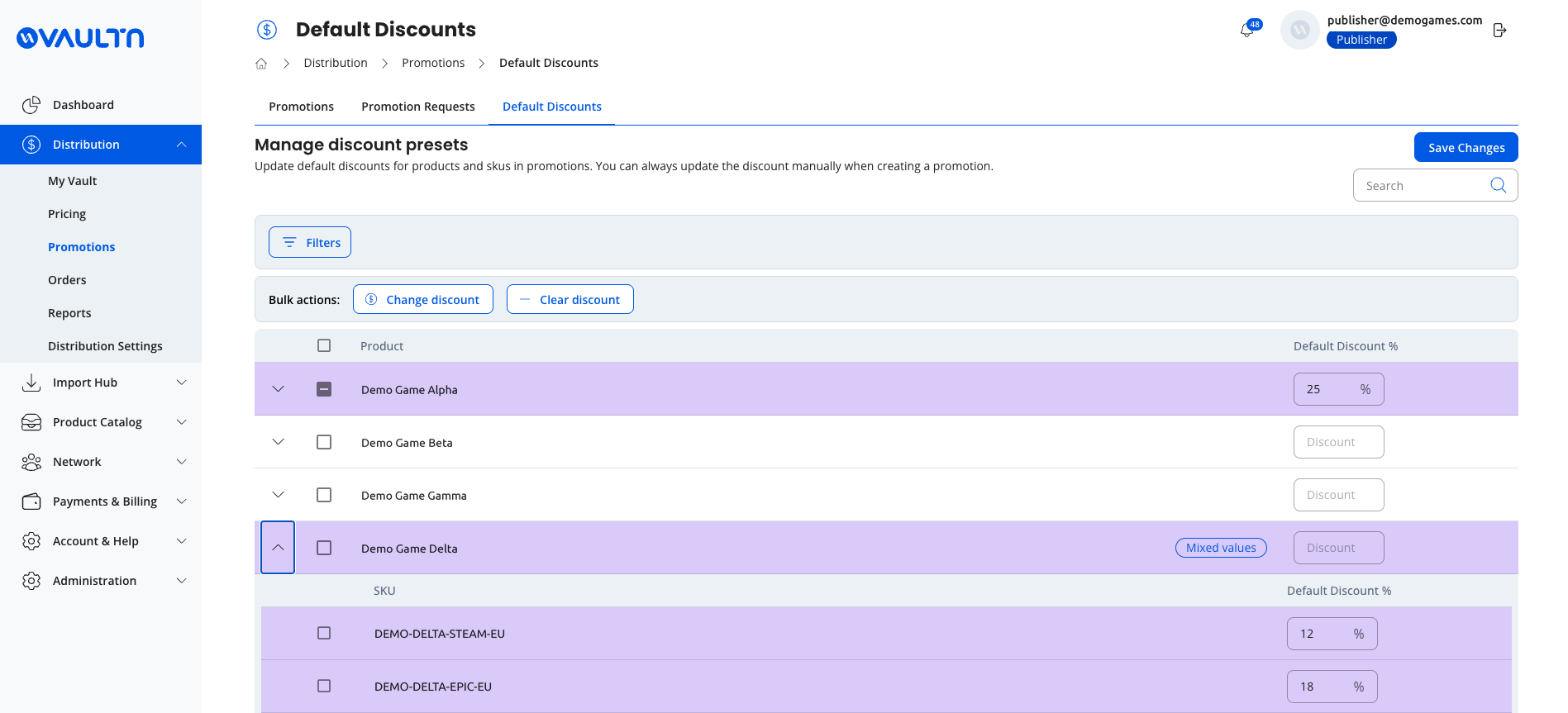
ImportantNothing is stored until you click Save Changes. If you try to leave the page with unsaved changes, VaultN warns you. To discard your edits, click Cancel.
TipBulk actions apply only to the rows on the current page. Use Search or Filters to narrow the list before you select rows.
Remove a default discount
- Select the checkboxes for the rows you want to clear.
- Click Clear discount under Bulk actions.
- Click Save Changes.
What the product row shows
| Product row | Meaning |
|---|---|
| A value in the discount field | All SKUs of the product have the same default discount |
| Empty discount field with a Mixed values tag | The SKUs have different default discounts |
| Empty discount field, no tag | No default discount is set |
What happens when you create a promotion
- Each SKU's discount is pre-filled from its default.
- You can change any pre-filled discount before you save the promotion.
- If a SKU has no default, the discount field stays empty and you enter it manually.
- Defaults are copied once, when you create the promotion. Changing a default later doesn't update existing promotions, drafts or promotion requests.
Retailers don't see your default discounts.
Frequently asked questions
Can I set a different default discount per retailer?
No. If you need a different discount by region or platform, set it on the SKU for that region or platform.
Can I set default discounts for a season or date range?
No. A default discount applies until you change it.
Can I import or export default discounts with a file?
No. Set them on the Default Discounts tab.
If I change a default discount, are my existing promotions updated?
No. Only new promotions use the new value.
Can I select all products at once for a bulk change?
Bulk actions apply only to the rows on the current page. Use filters to narrow the list first.
Related pages
Need help? Contact us at [email protected].
Updated 10 days ago