
Promotions
Promotions on VaultN allow you to offer discounts on selected products, helping to attract customers and boost sales. This guide will walk you through the process of creating and managing promotions step by step.
Creating a Promotion
-
Navigate to Distribution > Promotions.
-
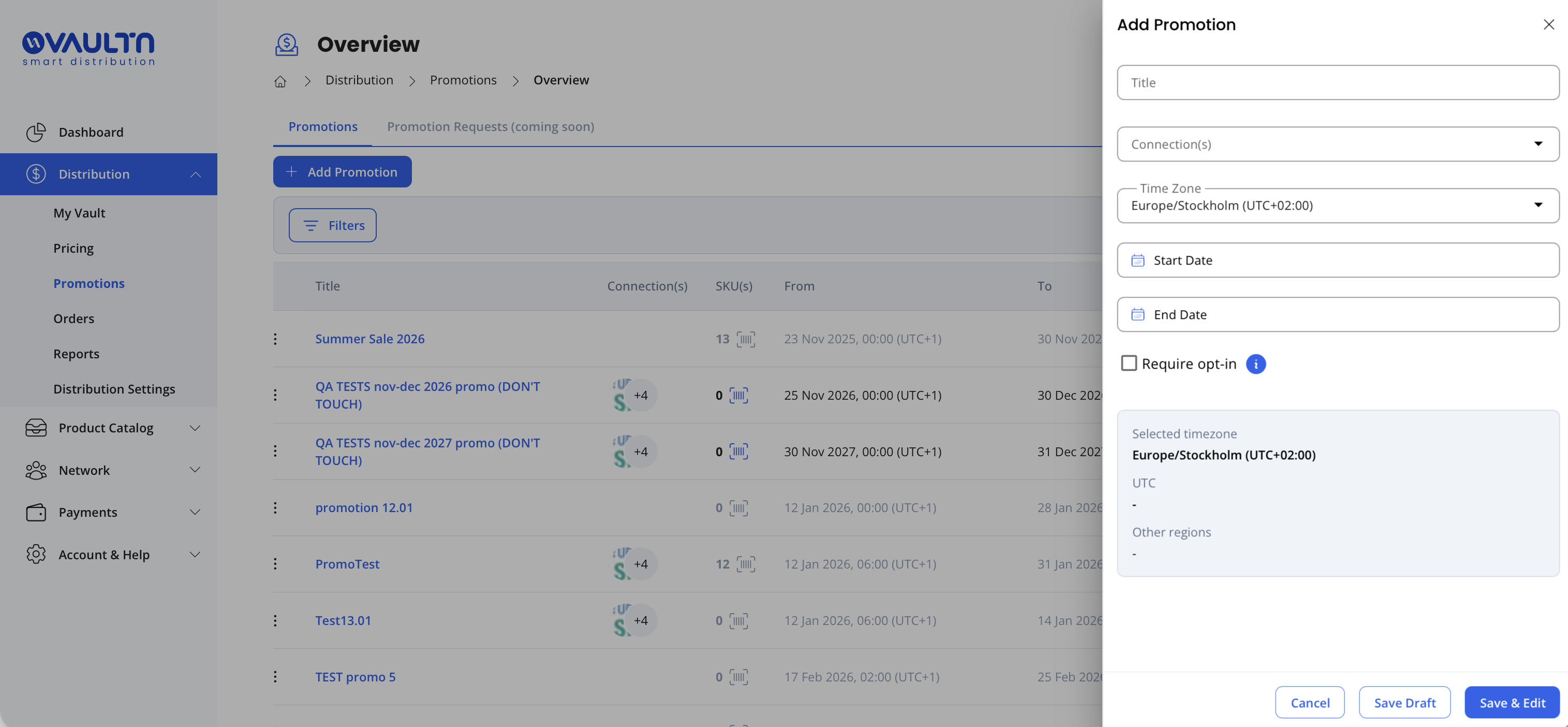
Click Add Promotion to open the side panel.
-
In the side panel, configure your promotion:
a. Give your promotion a name.
b. Select which Connection(s) to include.
c. Set your timezone.
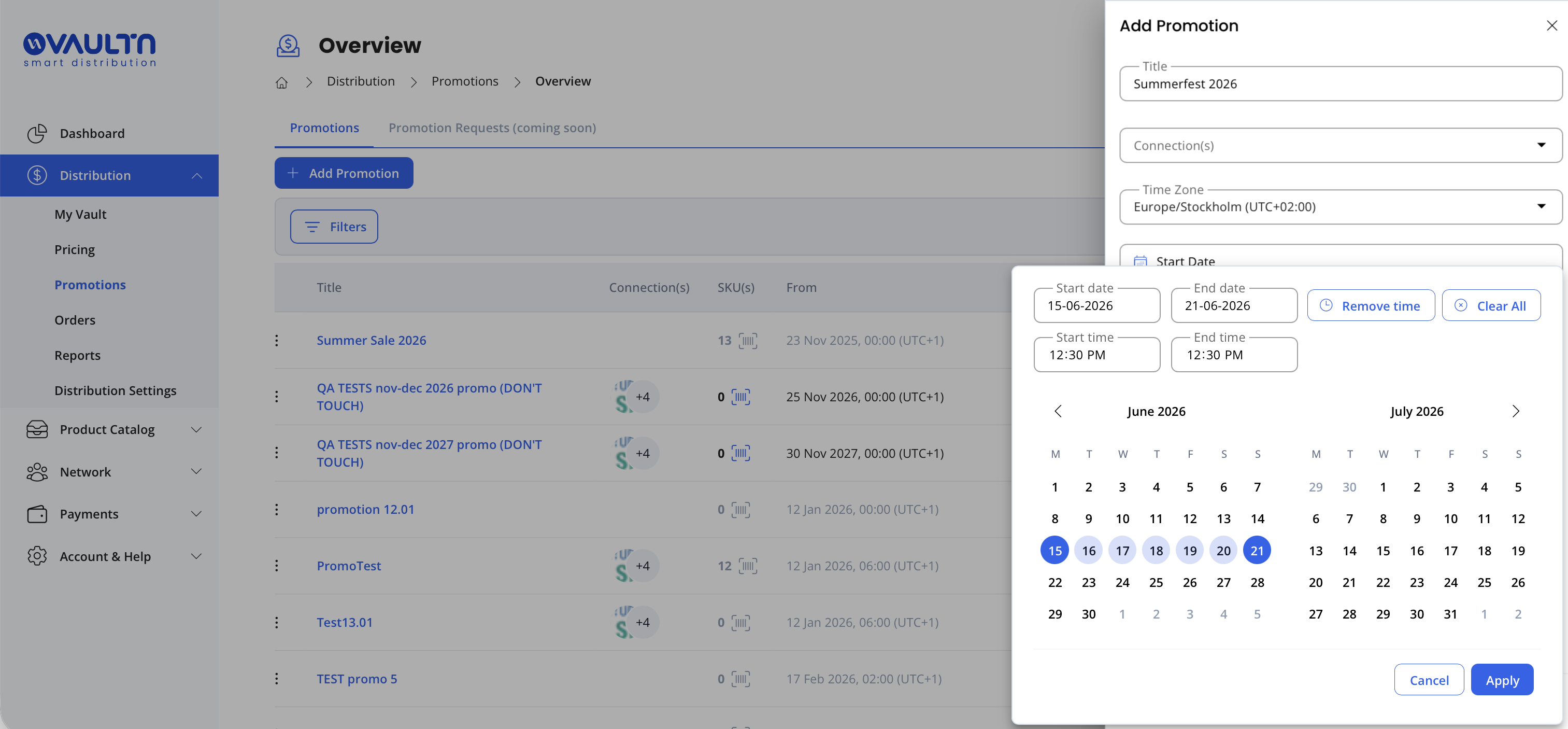
d. Define the start and end date/time.
e. Choose whether Retailers must opt-in before discounts become active. -
Click Save + Edit to proceed to the Details view.
Populating Your Promotion
You have two options for adding products and SKUs:
-
Import – use the import function to upload items in bulk (see Notes below).
-
Manually – click Add Promotion Item(s) to open the search panel, find the products and SKUs you want to include, then click Confirm to add them to your promotion list.
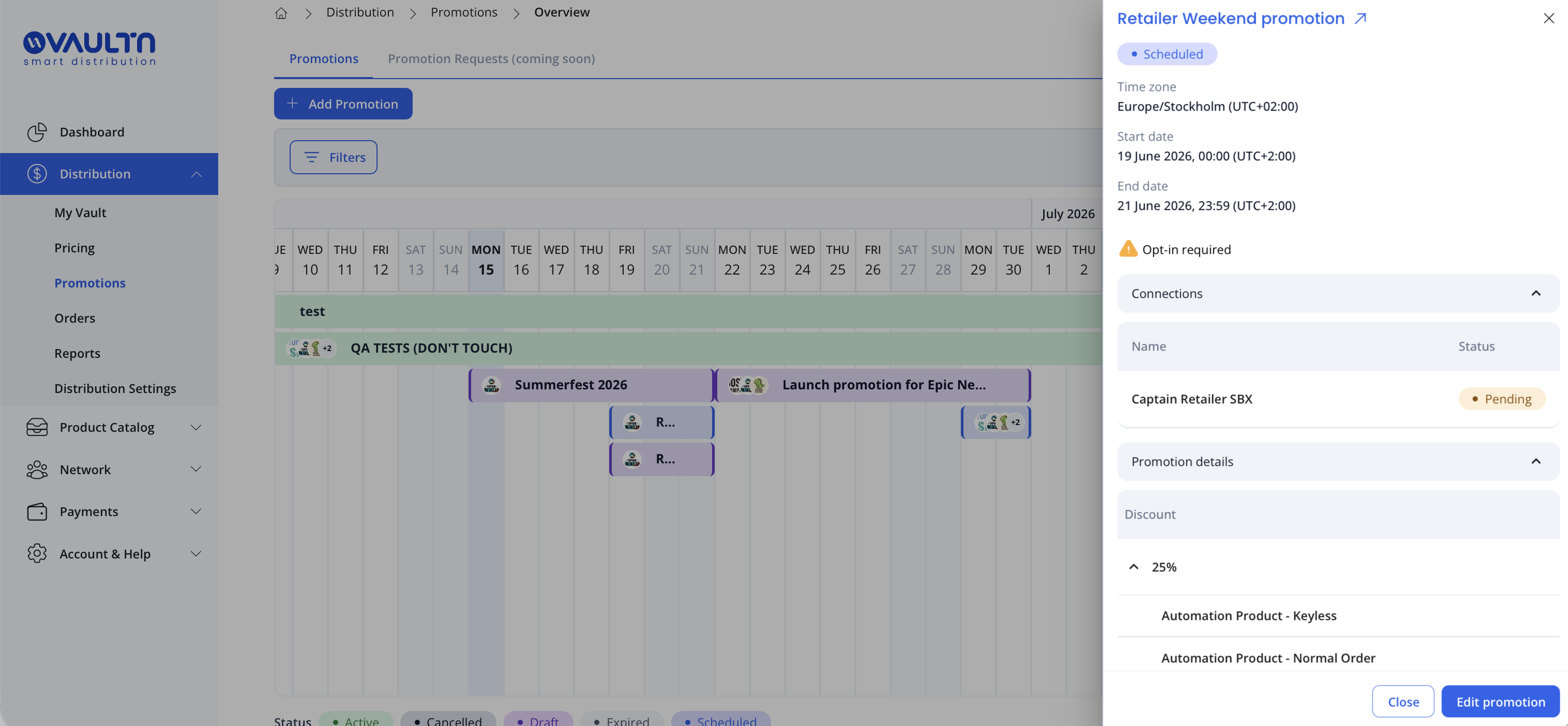
Tip: Add products in batches grouped by discount level. You can then apply the same discount to all items in a batch using the bulk action before adding them to your list.
Tip: To target specific SKU regions, use the SKU Region Filter when making your selection. Only SKUs matching the selected region(s) will be added.
Applying Discounts
-
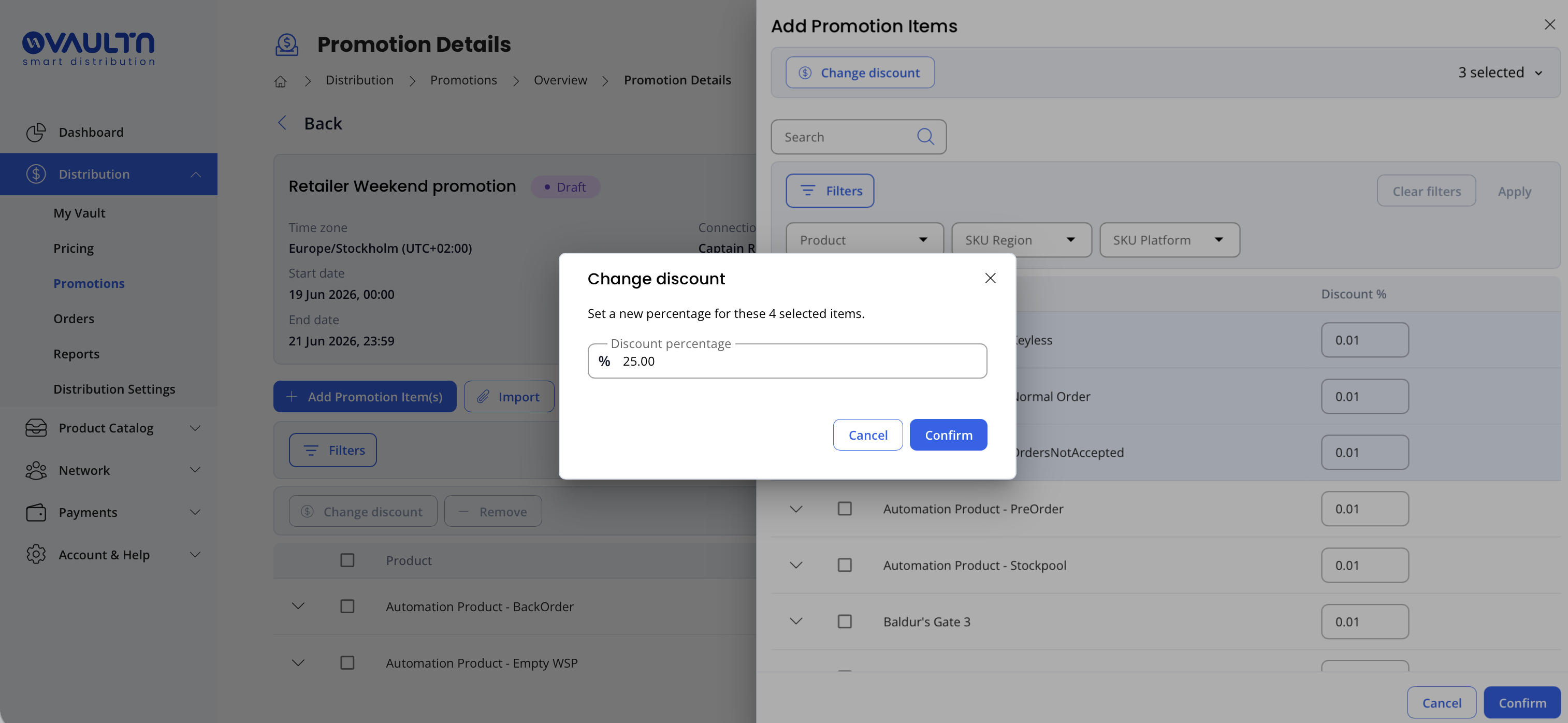
If you didn't set discount values in the side panel, you can edit them individually per item or use the checkboxes to bulk-update multiple items at once.
-
Entering a discount value on a product row will apply that value to all SKUs belonging to that product in the list.
Saving & Publishing
- Click Save to store your promotion as a draft.
- Click Publish Promotion to save and share it with the specified Connection(s).
Notes
- Opt-in promotions: If opt-in is required, each Connection must accept the promotion before discounts become active for them.
- Draft visibility: Connections cannot see promotions in draft status, so you can make changes freely before publishing.
- Post-publish edits: You can still edit a promotion after publishing, but any changes take effect immediately for the Connection. Affected Connections will receive a notification when changes are made. We recommend finalizing all details before publishing.
- Backdating: Backdating a published promotion is not supported. If this is needed, please contact our client success team.
- Import template: The import function allows you to download an Excel template pre-populated with your current promotion items and their discounts.
Updated 4 months ago