
Requesting a promotion
Promotion Requests allow retailers to ask publishers directly for a discount on specific products, right within VaultN.
Instead of emailing or messaging a publisher to negotiate a promotion, retailers can submit a request, and publishers can review and approve it, suggest edits, or decline it. Once both sides agree, the request automatically turns into a live promotion. This keeps the whole back-and-forth in one place and gives both sides a clear record of what was requested and agreed to.
Note: Promotion Requests is an evolving feature. This is an early iteration, and we plan to expand it over time with additional functionality to make requesting and managing promotions even easier.
Promotion Requests statuses
You will receive in-app notifications on every status change throughout the process.
- DRAFT - Promotion request started but not submitted to the publisher (Not applicable to publisher)
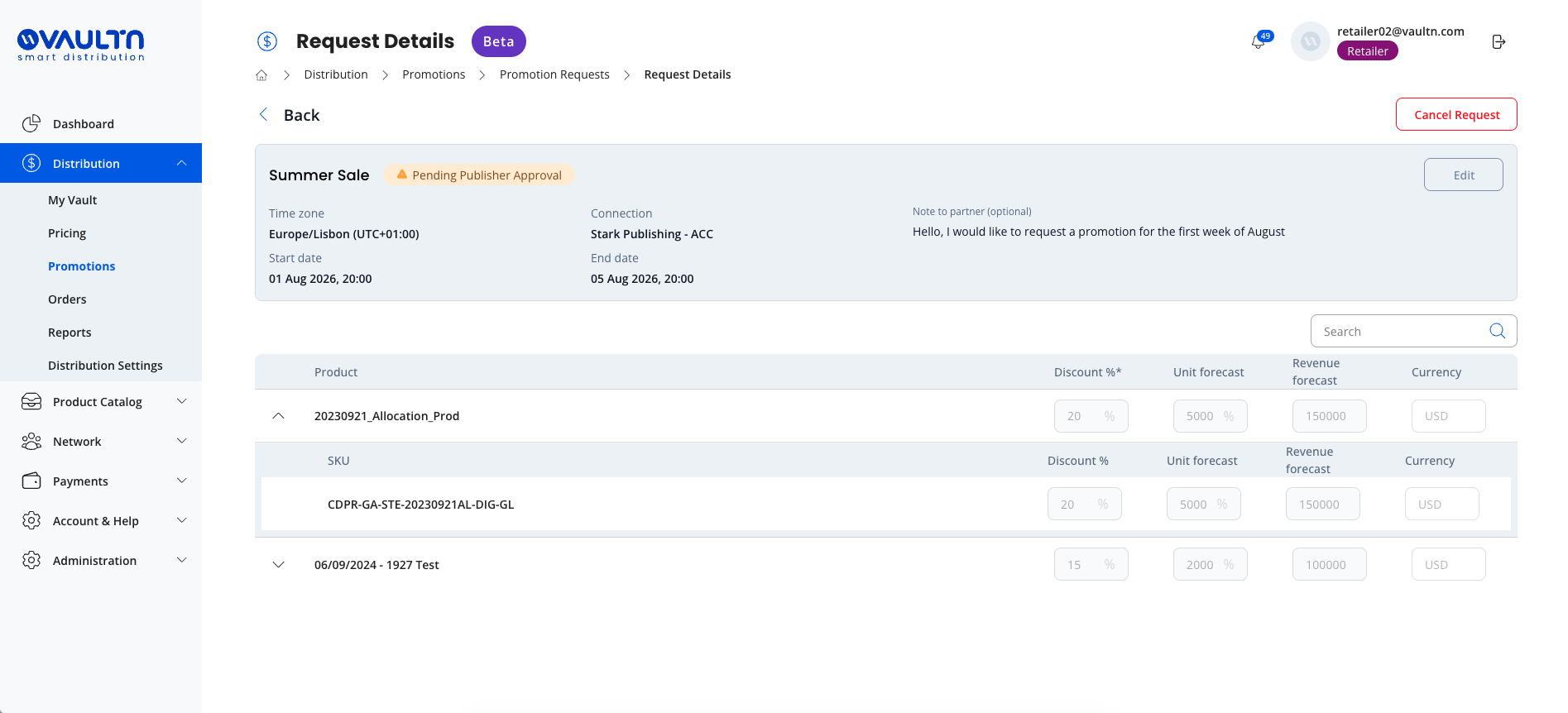
- PENDING PUBLISHER APPROVAL - Promotion request submitted to the publisher but pending approval
- PENDING RETAILER APPROVAL - Promotion request reviewed and edited by the publisher but pending retailer approval
- UNDER REVISION - Publisher has requested a revision without suggesting changes. Retailer needs to suggest a new version.
- DECLINED / CANCELED - Promotion request declined by publisher or canceled by retailer
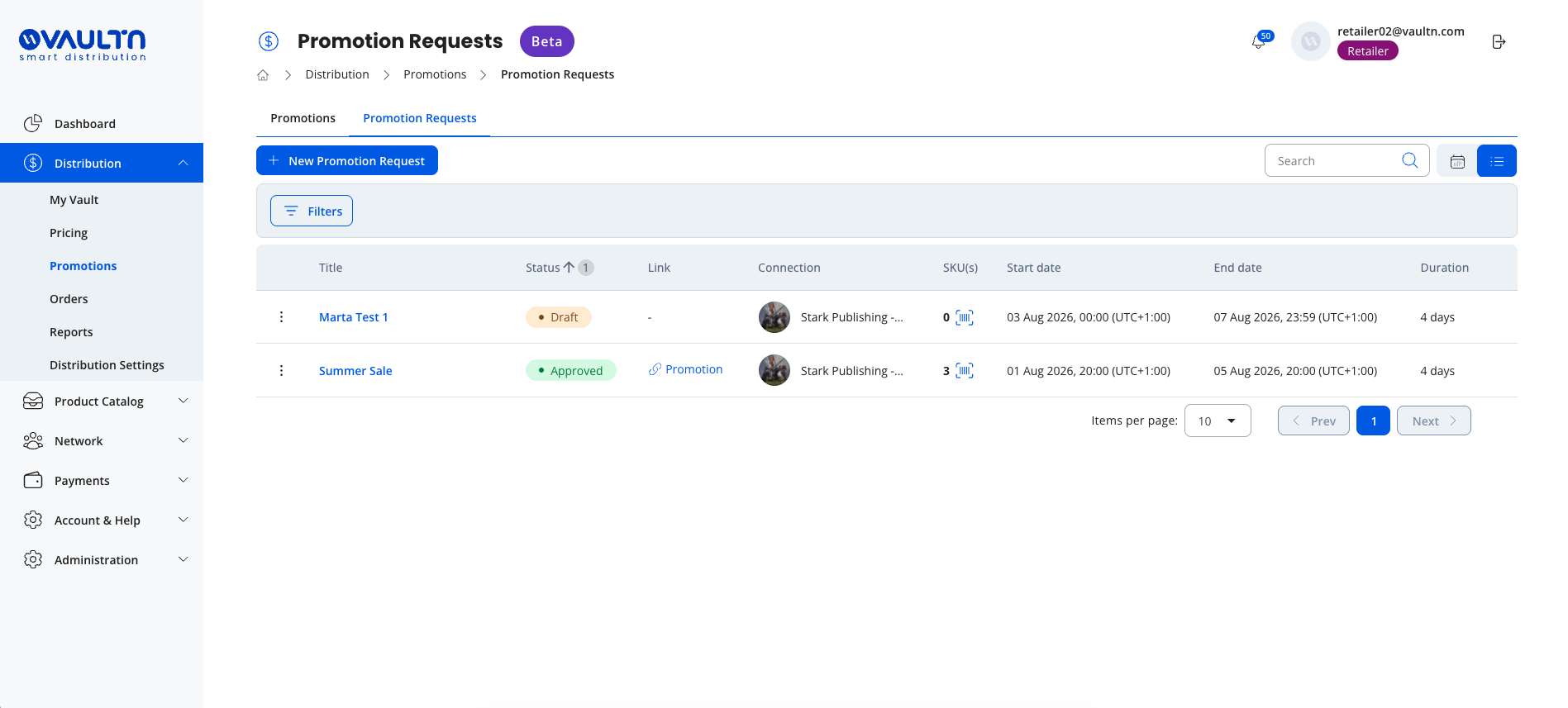
- APPROVED - Promotion request accepted by publisher and retailer, and is now final
Note: Every approved request stays linked to the promotion it creates. Once a request is approved and turns into a live promotion, the system keeps a record connecting the two. This lets you trace a promotion back to the original request later, which is useful for tracking results and for audit history.
Promotion request setup: step-by-step
-
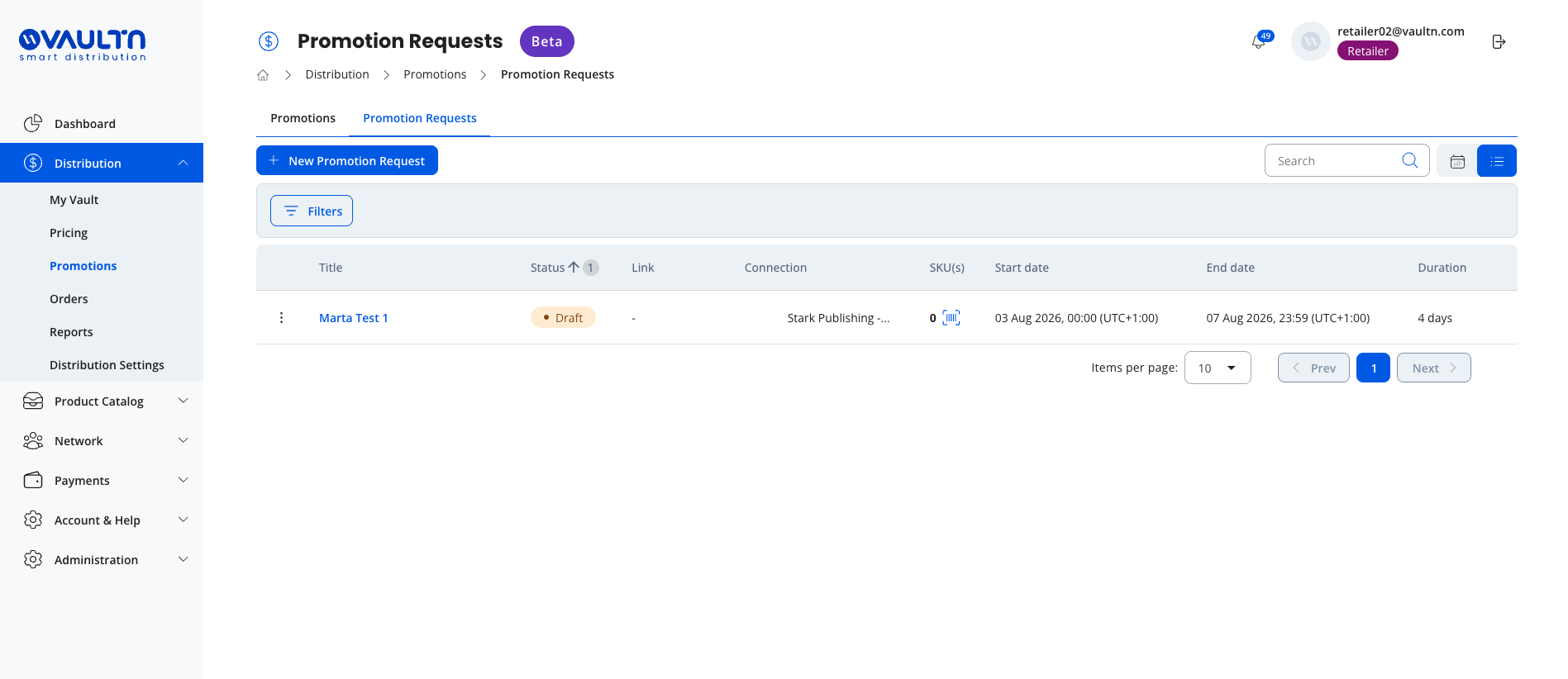
Create a promotion request by clicking “+ New Promotions Request”.
-
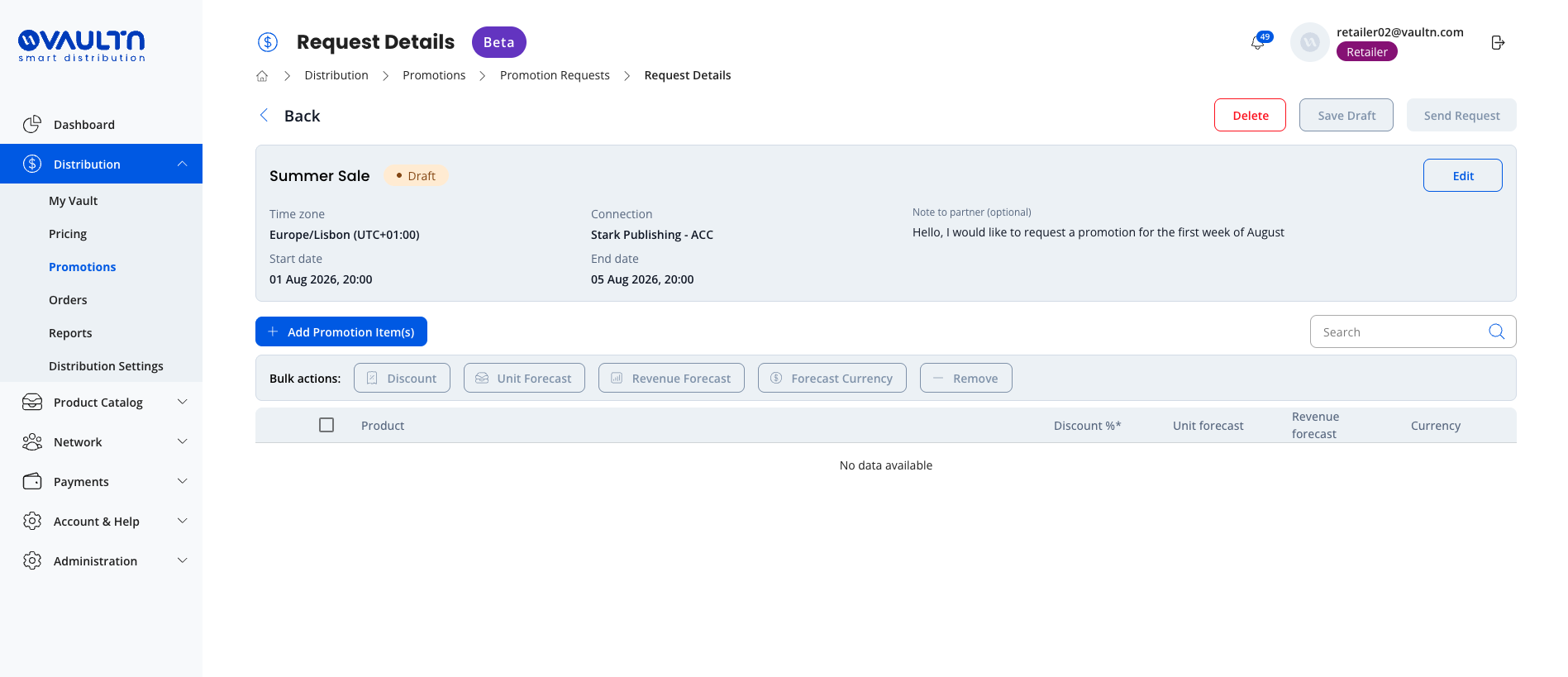
Add the promotion details:
2.1. Add title, publisher connection you want to request a promotion from, and start/end dates. Optionally, you can add a note with more context on the promotion. Click “Save & Edit”.
2.2. Add SKUs for the promotion and the requested discount level. Optionally, you can add unit forecasts, revenue forecasts, and currency. Click “Confirm”.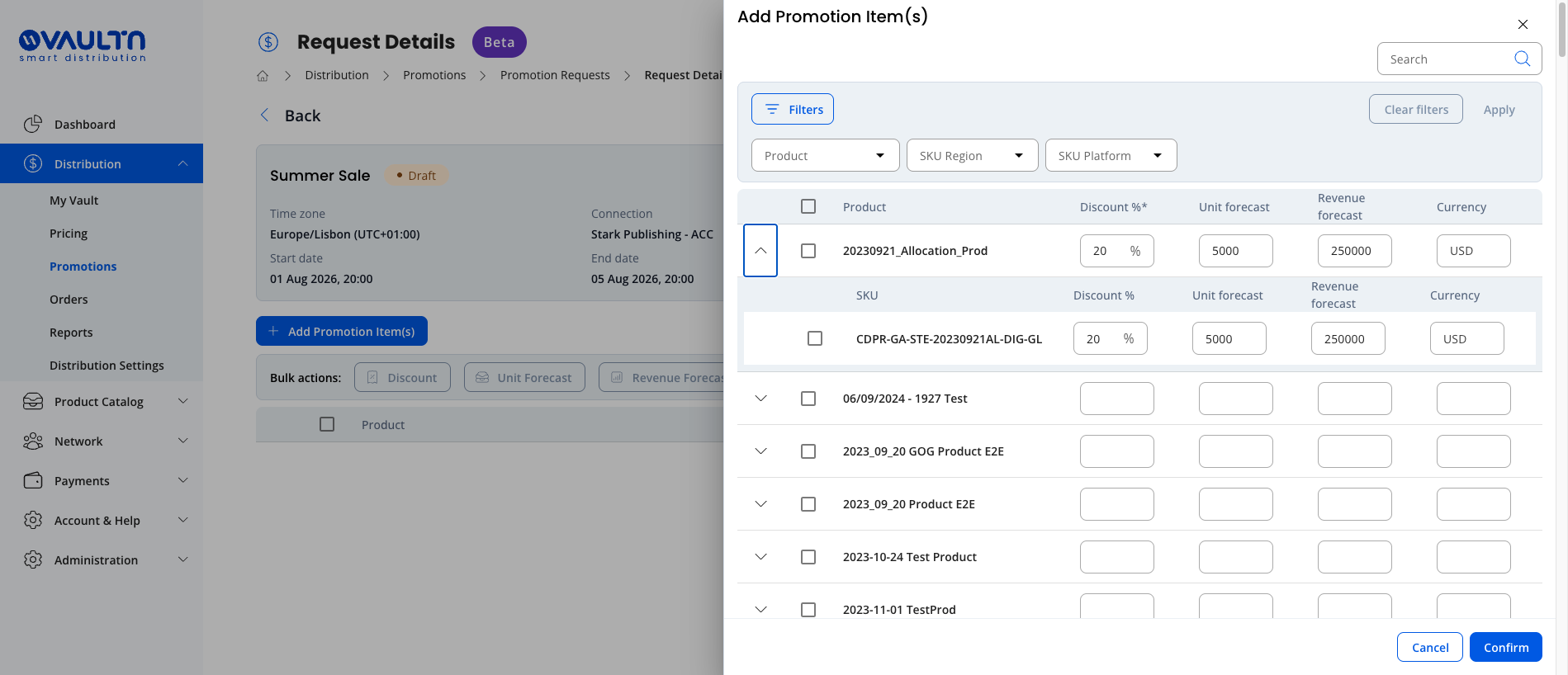
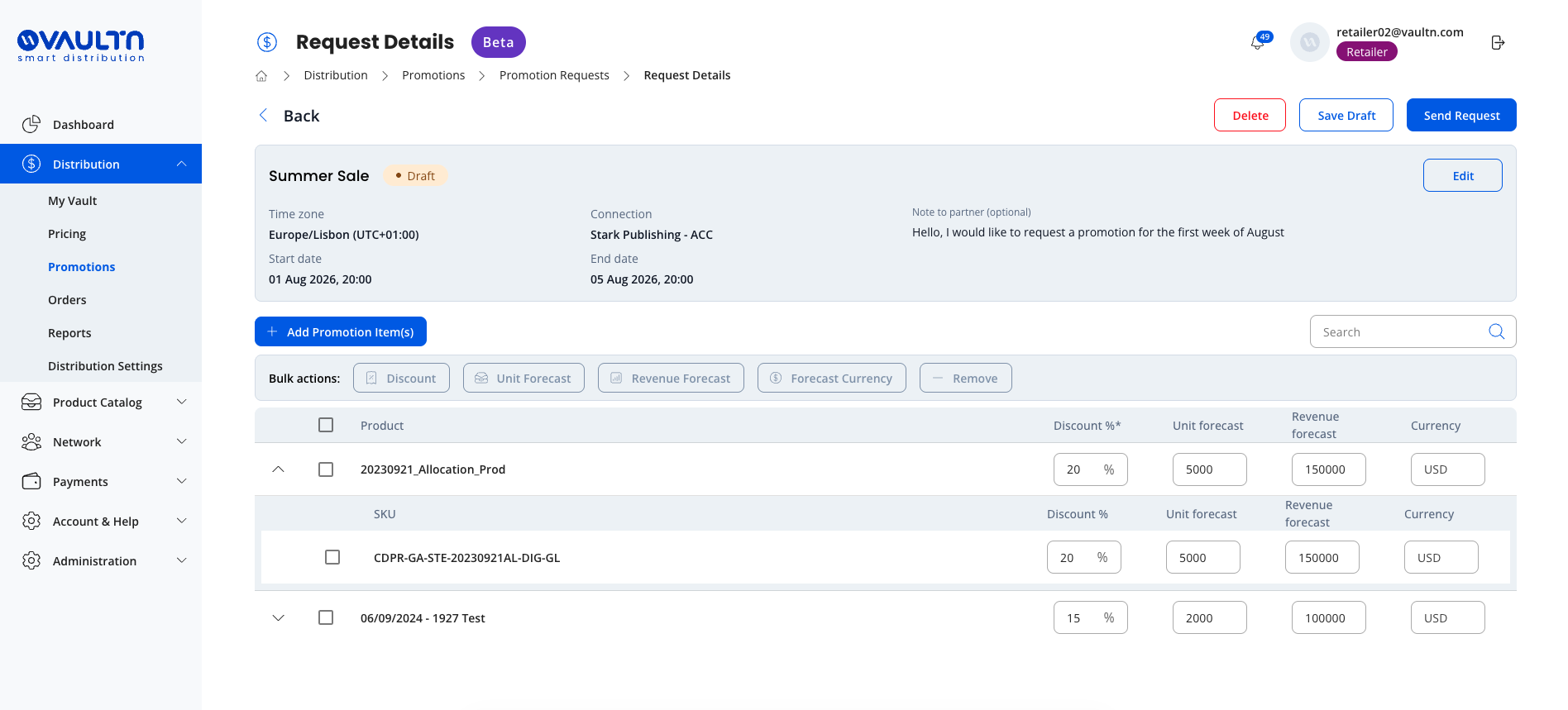
2.3. On the main promotion screen, review the requested promotion details.Note: At this stage, before you fill in all the details and submit the promotion request to the publisher, your promotion request will have a DRAFT status and will be available for further edits in your Promotion Requests list view.
-
Click “Send request” to submit the request to the publisher (status: PROMOTION REQUESTED → PENDING PUBLISHER APPROVAL).
-
Wait for the publisher's decision. Possible outcomes: APPROVED, DECLINED, or EDIT REQUESTED.
a) If the publisher proposes an edit (specific changes, e.g., discount/duration): review the proposed edits and choose to approve, request an edit (counter-propose changes), or cancel the promotion.
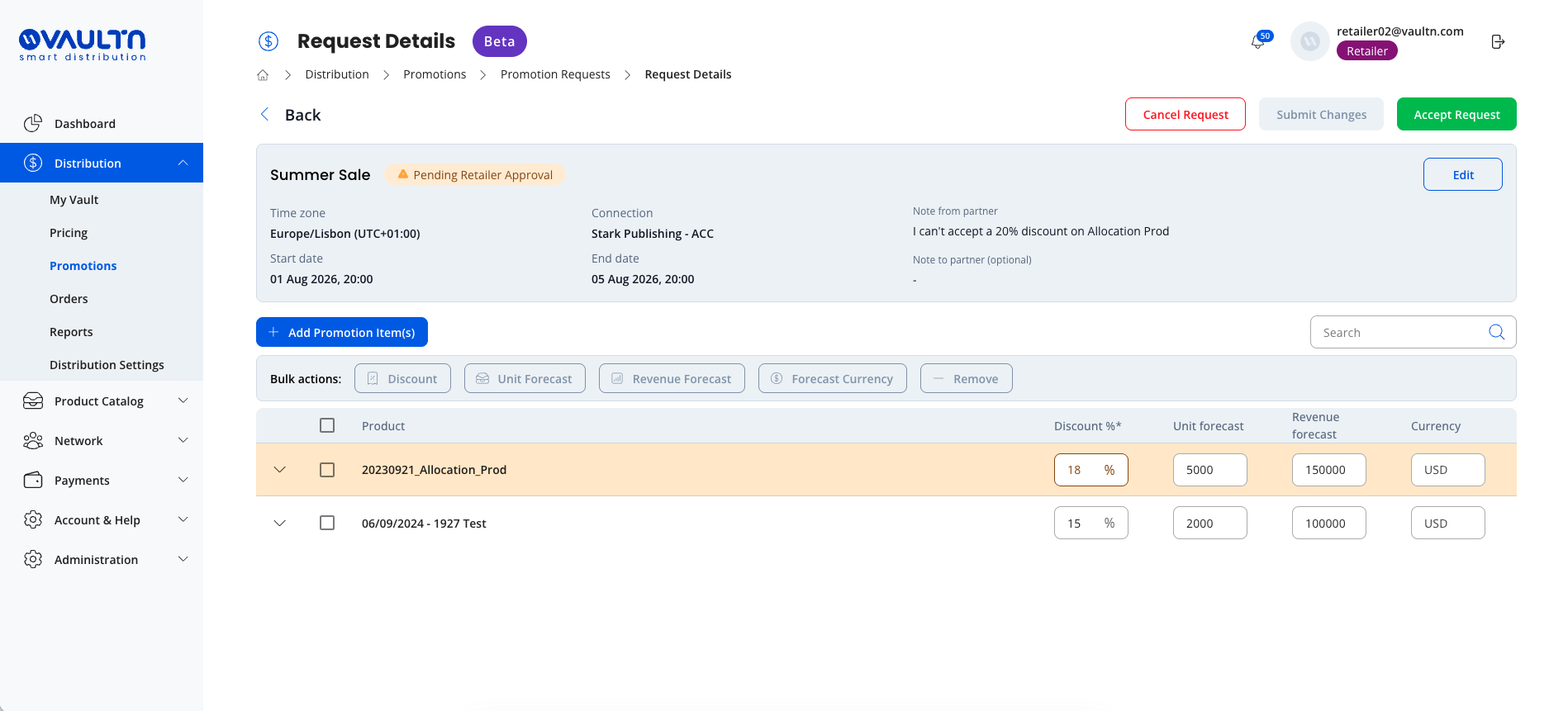
b) Repeat the negotiation loop (respond to further publisher edits/revisions) until the request is APPROVED, DECLINED, or CANCELED.
Important: The retailer may cancel the request at review stages but cannot cancel a promotion once it's live/scheduled. Only the publisher can edit or cancel a scheduled/live promotion. -
Once APPROVED: the request becomes locked/view-only; a linked promotion is auto-created in the Promotions tab.
Updated 2 months ago